Part 2 of 2
Install the Ungodly mods
With UE4SS v3.0.1 in place, all seven mods are one folder copy away. The download's Mods folder already holds UE4SS's own mods, the seven Ungodly mods and a mods.txt that lists them.
Step 1: Download the mods
Both buttons give you the same file, 3.3 MB.
My download mirrors are on my own paid Google Drive account, so I can guarantee they're safe and secure. They may also give you faster download speeds.
StixsworldHD
To check your copy, compare its SHA-256 with this one (how to check it):
2C2A8C9CAF58CDD490222624A9DE1FF672CE49975476E6231E6F10B89C1039C5Step 2: Open the archive
- Windows 11, up to date: double-click the
.rarfile. File Explorer opens it like a folder. - Windows 10, or if Windows 11 won't open it: install the free 7-Zip, right-click the file and choose 7-Zip, then Open archive. On Windows 11, 7-Zip is under Show more options.
Inside you'll find:
| Item | What it is |
|---|---|
Mods | The folder you install: UE4SS's own mods, the seven Ungodly mods and mods.txt. |
README.md | The read-me for the whole collection: requirements, first-launch checklist, troubleshooting. Where it shows dwmapi.dll, UE4SS.dll and UE4SS-settings.ini in Win64, those come from part 1 of this guide; they aren't in this archive. |
README_AI.md, README_Beautify.md and five more | One per mod, with every feature and every setting explained. |
Step 3: Copy the Mods folder into Win64
- Open the game's
Win64folder in a second File Explorer window (part 1, step 5 shows how). It already has aModsfolder from UE4SS. - Drag the
Modsfolder from the archive intoWin64, or copy and paste it. - Windows says the destination has 17 files with the same names. Choose Replace the files in the destination. In 7-Zip, choose Yes to All.
Already have other UE4SS mods listed in your mods.txt? Then don't replace it: follow Already using other UE4SS mods instead.
Step 4: Check the Mods folder
Win64\Mods now holds 19 items: UE4SS's 10 mod folders, its shared folder, the seven UngodlyEDFWorldBrothers folders and mods.txt.
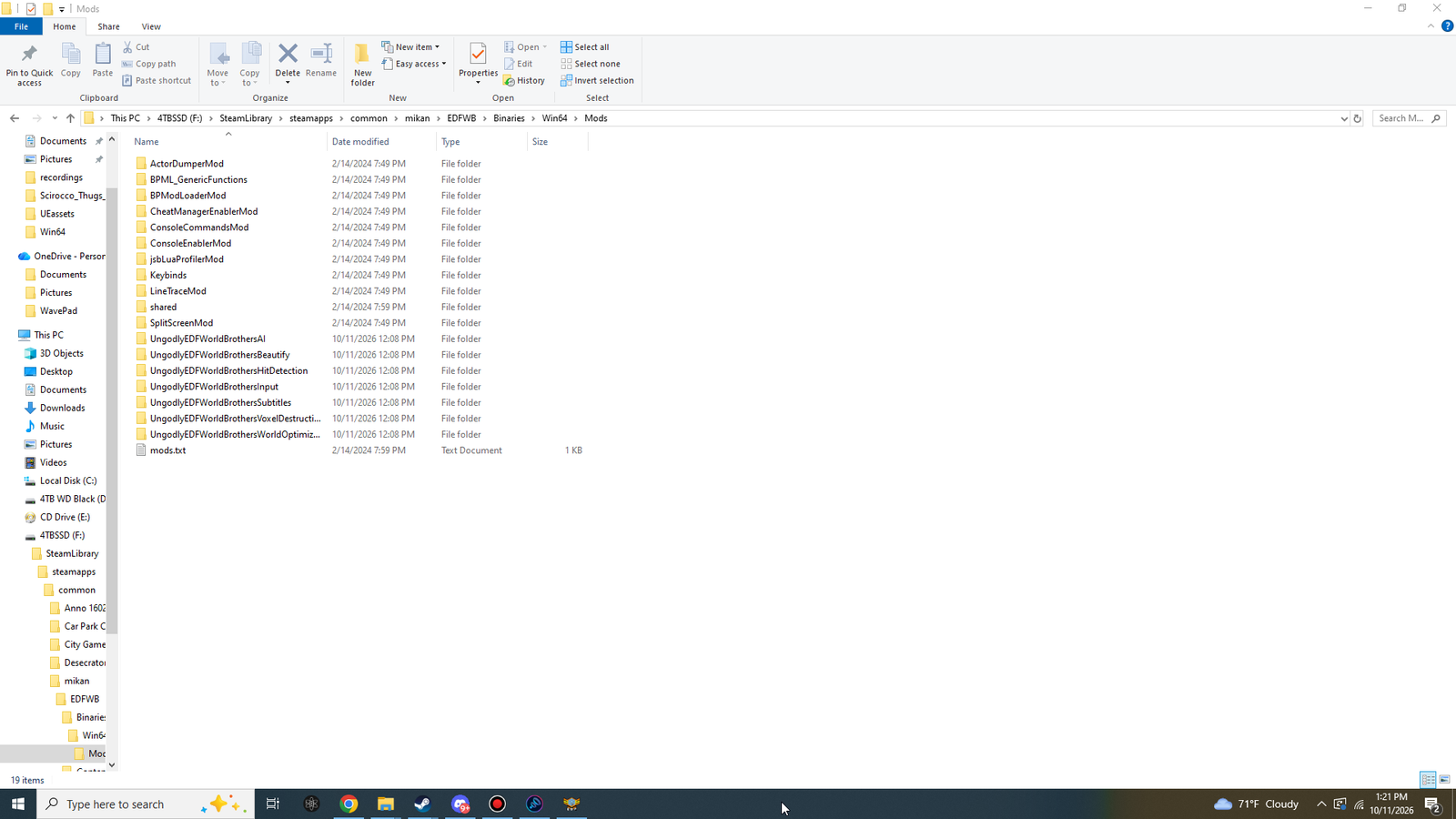
Each Ungodly folder holds three files: dlls\main.dll (the mod), enabled.txt (tells UE4SS to start it) and its settings file.
Folder in Win64\Mods | Version | Hotkey | main.dll |
|---|---|---|---|
UngodlyEDFWorldBrothers | 1.0.0 | F3 | 1,123,840 bytes |
UngodlyEDFWorldBrothers | 1.0.1 | F4 | 1,040,896 bytes |
UngodlyEDFWorldBrothers | 1.2.5 | F5 | 1,545,728 bytes |
UngodlyEDFWorldBrothers | 1.0.5 | F6 | 1,176,064 bytes |
UngodlyEDFWorldBrothers | 1.0.4 | F7 | 1,134,592 bytes |
UngodlyEDFWorldBrothers | 1.0.3 | F8 | 1,143,808 bytes |
UngodlyEDFWorldBrothers | 1.0.2 | F9 | 1,225,216 bytes |
mods.txt from the download, as it should look in Win64\Mods:
CheatManagerEnablerMod : 1
ActorDumperMod : 0
ConsoleCommandsMod : 1
ConsoleEnablerMod : 1
SplitScreenMod : 0
LineTraceMod : 0
BPModLoaderMod : 1
BPML_GenericFunctions : 1
jsbLuaProfilerMod : 0
UngodlyEDFWorldBrothersAI : 1
UngodlyEDFWorldBrothersVoxelDestruction : 1
UngodlyEDFWorldBrothersHitDetection : 1
UngodlyEDFWorldBrothersInput : 1
UngodlyEDFWorldBrothersSubtitles : 1
UngodlyEDFWorldBrothersBeautify : 1
UngodlyEDFWorldBrothersWorldOptimization : 1


; Built-in keybinds, do not move up!
Keybinds : 1
UE4SS starts a mod when its line in mods.txt says 1 or when its folder has an enabled.txt. Either one is enough. The order in mods.txt is the order UE4SS starts them.
Step 5: Start the game and check UE4SS.log
- Start the game from Steam and wait for the title screen.
- Open
Win64\UE4SS.logwith Notepad. You can leave the game running. Ctrl + F andUngodlyjumps from one mod's line to the next.
| Look for | It means |
|---|---|
Starting C++ mod 'UngodlyEDFWorldBrothersAI' and the same for the other six (or Mod '…' has enabled.txt, starting mod.) | UE4SS started the mods. |
[UngodlyAI] settings loaded (269 values) … and a settings loaded line from each of the others | Each mod read its settings file. |
[UngodlyWorld] ready - press the menu hotkey in game (default F3), and the same with F5 to F9 from AI, Voxel, Hit, Input and Subtitles. Beautify writes [UngodlyBeautify] ready - Beautify is applied to the game's 3D image before its interface; … | All seven are active. |
One mod writes in-game overlay: DirectX 11 present hook installed (this mod hosts the universal Ungodly menu), the others in-game overlay: joined the overlay of another Ungodly mod (one universal Ungodly menu). Then in-game overlay ready on the game's DirectX 11 window. | The universal menu is ready. Whichever mod starts first draws it for all seven. |
Each mod's lines start with its own tag:
[UngodlyWorld], [UngodlyBeautify], [UngodlyAI], [UngodlyVoxel], [UngodlyHit], [UngodlyInput], [UngodlySubtitles].
A line is missing? See The log has no lines from a mod.
The quoted lines were checked against the text inside each mod's main.dll and UE4SS's own source code.
Step 6: Press F3 in game
Click into the game window and press F3. The universal Ungodly menu opens on the World Optimization page, and the list on the left shows all seven mods running:
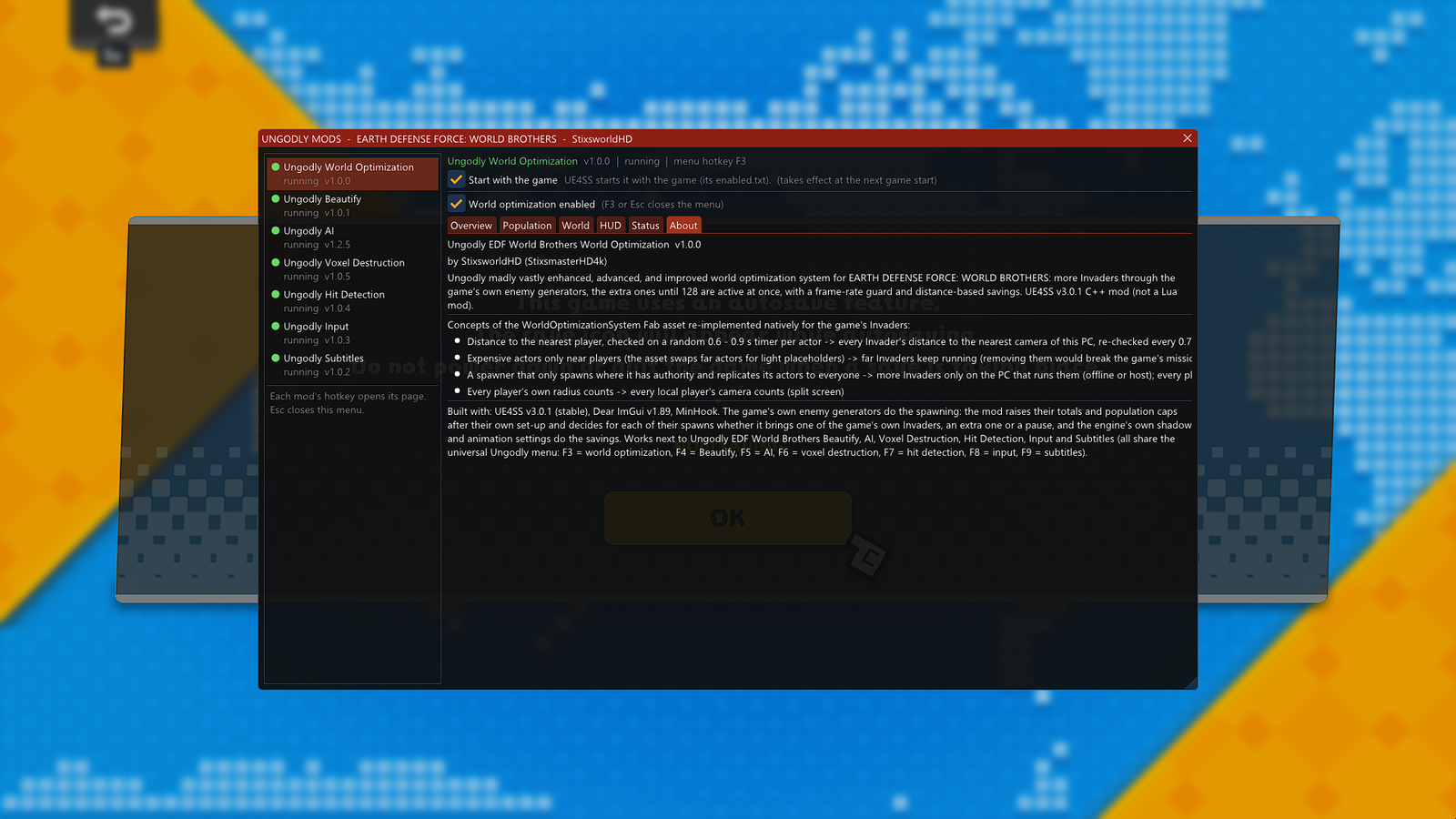
F4 to F9 jump to the other mods' pages, and Esc closes the menu. That's it: everything is installed.
Things to try in your first mission
- Press F2 a few times to see Beautify off and on.
- Jump, and press Jump again just before you land: you jump again as soon as the game lets you.
- Shoot an ant: the hit lands at once and an X flashes on your crosshair.
- Fire a rocket into a building: the chunks around the hit take part of the blast, and the broken pieces fall to the street.
- Watch a cutscene: every subtitle line is spelled out in time.
- Count the Invaders: twice as many by default, and the extra ones keep coming until 128 are active.
Already using other UE4SS mods
If your mods.txt lists mods of your own, keep it. Copy only the seven UngodlyEDFWorldBrothers… folders from the archive's Mods folder into Win64\Mods. Their enabled.txt files make UE4SS start them.
For a fixed start order, also add these lines to Win64\Mods\mods.txt, above the ; Built-in keybinds line:
UngodlyEDFWorldBrothersAI : 1
UngodlyEDFWorldBrothersVoxelDestruction : 1
UngodlyEDFWorldBrothersHitDetection : 1
UngodlyEDFWorldBrothersInput : 1
UngodlyEDFWorldBrothersSubtitles : 1
UngodlyEDFWorldBrothersBeautify : 1
UngodlyEDFWorldBrothersWorldOptimization : 1
Only some of the mods
Copy only the folders of the mods you want (and only their lines in mods.txt). Each mod works on its own. The universal menu is then drawn by one of the mods you installed, and lists the others as not installed.
Upgrading from an earlier Ungodly download
- Keep your settings: copy the INI files of the mods you already have to a safe place. Each is in its mod's folder in
Win64\Mods, for exampleUngodlyEDFWorldBrothersAI\UngodlyEDFWorldBrothersAI.ini. The download's INI files have every setting at its default. - Copy the
Modsfolder intoWin64and let it replace the files. - Put your saved INI files back.
Beautify, Subtitles, Input and AI have the same settings as before, so your files work unchanged. Hit Detection and Voxel Destruction dropped their Online co-op setting (online they're now always cosmetic only); that line in an older file is ignored. The AI's learned_brains.txt and any subtitle backlogs you saved aren't in the download, so nothing overwrites them.
Install all seven from this download. They still run next to older Ungodly builds, but mods from before the universal menu keep a menu window of their own.
Settings files
Every mod keeps its settings in an INI file in its own folder, for example Win64\Mods\UngodlyEDFWorldBrothersInput\UngodlyEDFWorldBrothersInput.ini. Each setting is described in the file with its range and default. You rarely need to open them: every setting is also in the in-game menu, where changes apply at once and are saved about a second later.
| Mod | Settings file | Settings |
|---|---|---|
| Ungodly World Optimization | UngodlyEDFWorldBrothers | 20 |
| Ungodly Beautify | UngodlyEDFWorldBrothers | 37 |
| Ungodly AI | UngodlyEDFWorldBrothers | 149 + 120 idea switches |
| Ungodly Voxel Destruction | UngodlyEDFWorldBrothers | 56 |
| Ungodly Hit Detection | UngodlyEDFWorldBrothers | 46 |
| Ungodly Input | UngodlyEDFWorldBrothers | 51 |
| Ungodly Subtitles | UngodlyEDFWorldBrothers | 35 |
Turn mods off or uninstall
| You want | Do this |
|---|---|
| The game's own behaviour back, now | Untick the master switch at the top of the mod's page: World optimization enabled (F3), Beautify on (F4, or just press F2), AI overhaul enabled (F5), Voxel destruction overhaul enabled (F6), Hit detection overhaul enabled (F7), Input overhaul enabled (F8) or Subtitle overhaul enabled (F9). It works at once, and with Auto-save settings on (the default) the mod stays off at the next game start until you switch it on again. |
| UE4SS not to start a mod | Untick Start with the game on its page; it applies from the next game start. By hand: delete its enabled.txt and set its line in Mods\mods.txt to : 0. UE4SS starts a mod if either one says so. |
| To start it again | Tick Start with the game (it creates enabled.txt), then restart the game. |
| To remove a mod | Delete its folder in Win64\Mods and its line in mods.txt. The others keep working. |
| To remove everything | Also delete dwmapi.dll, UE4SS.dll, UE4SS-settings.ini, UE4SS.log and the Mods folder from Win64, if you have no other UE4SS mods. See Remove UE4SS. |
None of the mods change game files, saves or game settings. Everything they do lives in memory while the game runs, plus their own INI files, the AI's learned_brains.txt, subtitle backlogs you choose to save, and the enabled.txt and mods.txt changes made by Start with the game.